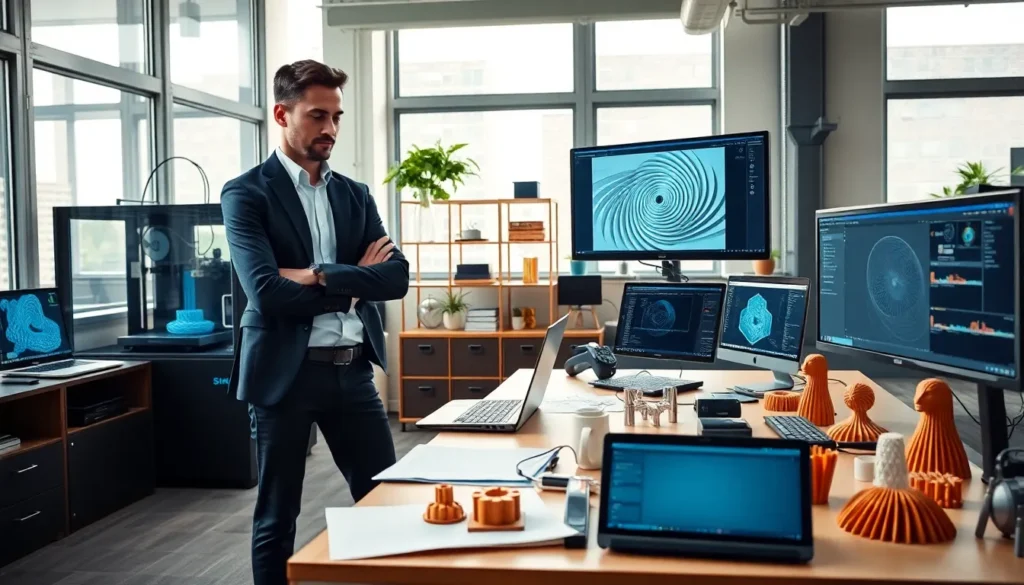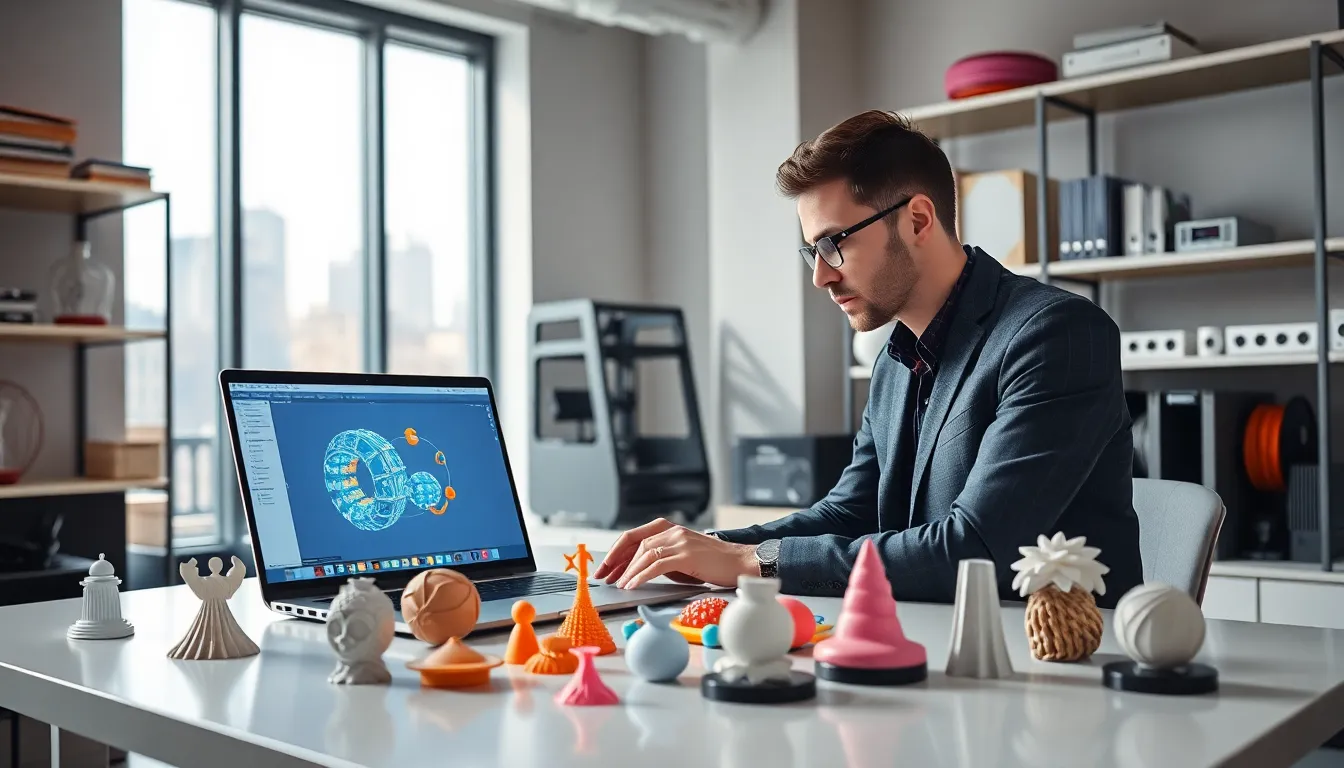

3D printing is like magic, right? You design something on your computer, hit print, and voila. Out pops a tangible object. But, hold on. Not all 3D design software is created equal. Enter Blender, the open-source superstar of 3D design. Whether you’re a hobbyist or dreaming of launching your next invention, blending skills with Blender’s powerful toolkit is essential. So, grab your favorite mug, settle in, and let’s jump into the world of Blender for 3D printing.
Understanding 3D Printing Basics
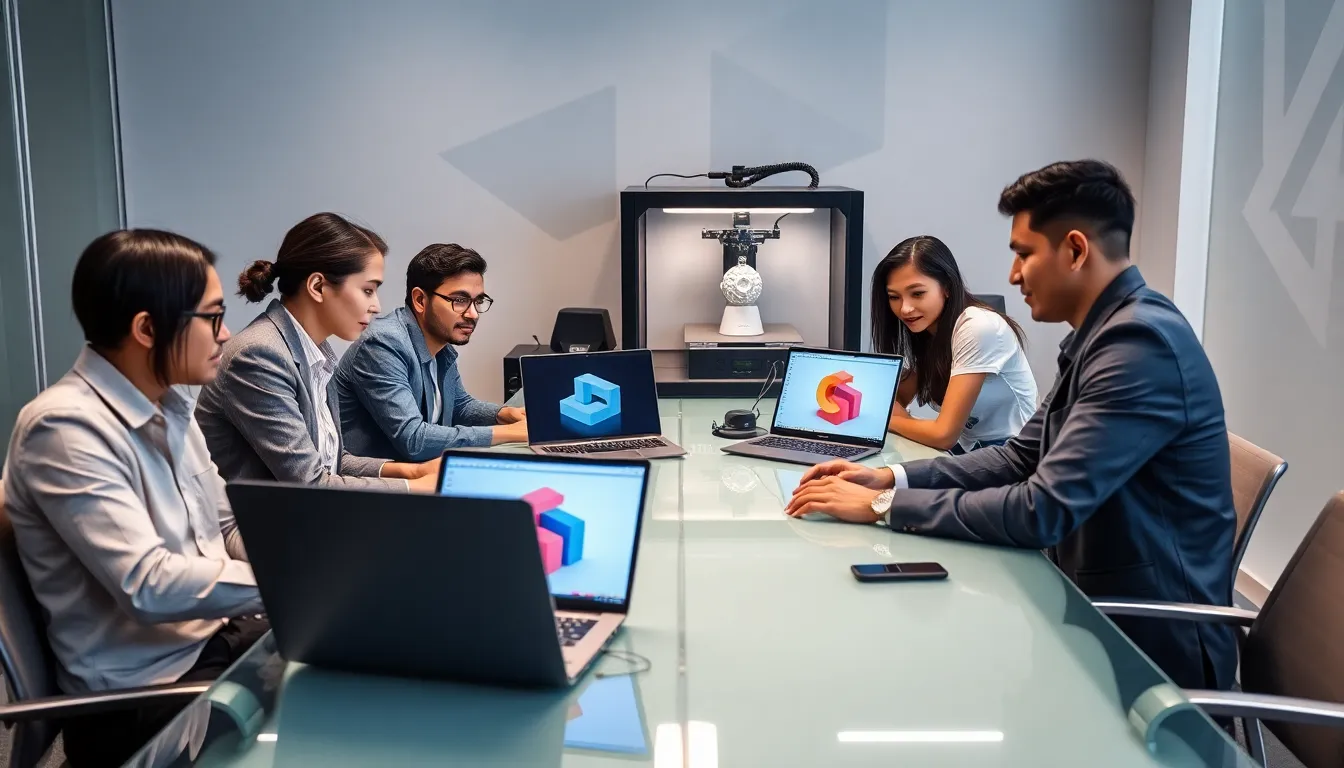
3D printing, often called additive manufacturing, involves creating three-dimensional objects from a digital file. It lays down layers of material until the object takes shape. The exciting part? There are multiple types of 3D printing technologies. Fused Deposition Modeling (FDM) is the most common for hobbyists. It works by melting and extruding plastic filament layer by layer. Another popular method is Stereolithography (SLA), which uses a laser to cure resin. Understanding these differences is crucial since how a model is designed can affect the final print.
Before diving into Blender, grasping a few key concepts is vital. For example, you’ll need to know about resolution, print speed, and material types. Each of these factors influences the design process and the outcome of your printed model. Bottom line: Before you can create anything extraordinary in Blender, a solid grip on the printing basics will save you a lot of time and potential headaches.
Setting Up Blender for 3D Printing
First things first, installing Blender is a breeze. Head over to Blender’s official website, download the software, and follow the instructions. Once it’s installed, you’ll want to set up your workspace for 3D printing.
Blender has various settings that allow you to optimize your design for printing. Start by adjusting the unit scale. Go to the Scene properties, then find the Units section and select Metric or Imperial based on your preferences. This helps to ensure that your dimensions match the printed output. Don’t forget about the preferences menu. Here, you can enable the 3D Printing Toolbox, which adds several helpful tools right in your sidebar. With these settings, users can validate dimensions, check for non-manifold edges, and fix common topology issues. These features are game changers during the modeling phase.
Designing Models for 3D Printing
When it comes to designing models in Blender, creativity knows no bounds. But, there are some guidelines you should follow to ensure your designs are optimized for printing.
Start with basic shapes like cubes or cylinders and experiment by modifying them in Edit Mode. Don’t forget about the importance of scale. Models should be appropriately sized for the intended print. For instance, if you plan to print a small figurine, designing at a larger scale helps ensure finer details are retained.
Using modifiers can dramatically enhance your workflow. The Boolean modifier is particularly useful for combining shapes or subtracting one shape from another. Besides, consider wall thickness. Common advice suggests that walls should be at least 1-2mm thick to ensure durability after printing. Of course, once you’re happy with your design, move on to the next crucial step.
Preparing Your Model for Printing
You’ve created your masterpiece. Now it’s time to prepare it for printing. First, ensure that the model is manifold, meaning it has no holes, intersections, or overlaps, which could confuse the printer. Using the 3D Printing Toolbox, check your model for these issues under the Validate section.
Next, apply all transformations. This ensures that your model displays correctly and avoids any weird resizing during export. You can do this by selecting your model and pressing Ctrl+A to access the Apply menu. Choose “All Transformations” for good measure.
After applying transformations, investigate your model’s scale. Ensure it fits within the size constraints of your 3D printer. A quick visual comparison in the 3D viewport can save anyone from accidentally printing a ten-foot-tall giraffe. Finally, it’s crucial to export your model in the right format, more on that in the next section.
Exporting Models from Blender
Exporting your model properly is a key step that many overlook. In Blender, the most common format for 3D printing is STL. To export your model as an STL file, select your model, go to the File menu, and choose Export, then STL. Remember to enable the selection only toggle, ensuring you’re exporting just the model you’ve been working on.
You might also want to check the export settings. Adjust the scale if necessary, especially if your previous settings altered dimensions. Finally, verify that your exported model is functioning correctly by opening it in a slicing program like Cura or PrusaSlicer. This step helps you visualize the print layers and spot any anomalies before it hits the print bed.
Common Issues and Troubleshooting
Even experienced designers run into issues when transitioning from model to print. One common problem is the dreaded ‘non-manifold geometry.’ This occurs when edges or faces don’t completely connect, causing printing errors. Using Blender’s 3D Printing Toolbox is a great way to identify and rectify these issues before they arise.
Another common hiccup involves the scale. Often frustration stems from a model that’s either too small to print detail or too large for the printer’s build volume. Keeping an eye on dimensions throughout the workflow can help mitigate this. Also, if your prints are warping or failing, checking the first layer of your printing process is crucial. Ensuring proper adhesion to the print bed can make a world of difference.
Finally, don’t hesitate to consult forums or Blender communities. Many users have shared their experiences, and there’s a high chance someone else has already solved the exact problem you’re facing.